Monday, September 19, 2011

New computer operating system brings NSW Police Force into the 21st Century

1 comments

The state’s crime fighters have received a significant boost with NSW Police Force introducing a new 21st-century computer operating system.

In 2009, NSWPF and Fujitsu Australia started work on modernising the Computerised Operational Policing System (COPS) – a 15-year-old DOS type program used by more than 15,000 officers to record crime information, intelligence and legal proceedings.

Following extensive consultation with frontline police, thousands of hours of testing and successful pilots at six key sites, NSWPF has now implemented WebCOPS.

The new purpose-built system incorporates a user-friendly graphical interface and more commonly used web functionality.

WebCOPS is integrated seamlessly with other NSWPF internet-based systems and allows police to generate and view multimedia files, including offender photographs and electronic evidence.

NSWPF Deputy Commissioner (Corporate Services) Catherine Burn said the benefits of the new core operating system will be enormous.

“The old COPS served the Force well for 15 years but really was nearing the end of its life,” Deputy Commissioner Burn said.

“The text-only was not able to meet our ever-growing demands and that, along with its inability to record, store and display multimedia material, drove us to look for a new alternative,” she said.

NSW police officers currently create 1.5million events on COPS annually – taking, on average, 24 minutes per event.

“WebCOPS will improve the speed and quality of information recorded and its integration with other policing programs will negate the need for officers to log in and out of different systems, saving them time,” Deputy Commissioner Burn said.

“That will effectively mean police will spend less time behind their desks and more time out on the street.”

WebCOPS will retain the strong security and audit capability of the old COPS, ensuring NSWPF complies with its legislative requirements.

“WebCOPS has brought our core operating system into the 21st century. It is the first phase of a program of works that will continue to bring operational policing and new technology together,” Deputy Commissioner Burn said.

“We have built a solid platform which we can further enhance and integrate with our other systems, giving frontline police access to better quality information and saving crucial time.

Source : police.nsw

Thursday, September 15, 2011

PlayBook OS version 2 coming next month

0 comments

During RIM’s disappointing Q2 earnings call this evening, Co-CEO Jim Balsillie confirmed that a major feature update to the BlackBerry PlayBook tablet would be arriving next month. The update to version 2.0 will be shown off at the BlackBerry DevCon event in October and will be made available shortly thereafter. The BlackBerry PlayBook launched back in April and was immediately criticized for its half-baked firmware and a slew of missing native apps. The new version of the PlayBook’s QNX-based operating system will finally address most of these issues and will bring the long overdue native email, contacts, and calendar functionality.

Additionally, the update will bring the promised Android App Player that will allow the PlayBook to run Android apps. RIM will also be adding a BlackBerry Video Store, which will bring over 10,000 movies and TV shows to the PlayBook.

via CrackBerry

Tuesday, September 13, 2011

Change your Operating System

0 comments

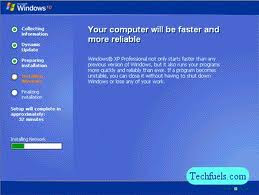
After using the same operating system for a while, it can be an exciting challenge to try something new. For example, an increasing number of Windows users have migrated to Linux-based systems like Ubuntu. Also, many Microsoft Vista customers have downgraded to Windows XP because of Vista's documented bugs and security vulnerabilities. Whatever the reason for changing your operating system, it's really not that difficult to make a switch. Here are a few steps to help you install a new operating system in your personal computer.

How to Install the New Operating System

1. Load the installation disk into the CD/DVD drive and then restart the computer.

2. Allow the operating system to format and partition the hard drive with the default settings. If you are familiar with partitioning a hard drive, you can also choose to manually partition the drive.

3. Enter a user name and password when prompted. It's very important for security purposes that you set up an administrative account.

4. Select programs and services. Some distributions allow you to choose which software packages will be installed. If you don't feel comfortable selecting packages, accept the defaults.

5. Select your time zone and language preferences. You may also be prompted to select a keyboard layout.

6. Wait for the installation to complete, remove the installation disk and then restart the computer.

7. Install additional hardware drivers, if prompted, and then load your personal data and files into the new operating system.

Article Source: Ehow

Wednesday, September 7, 2011

How to Fix Windows Installer Error 1601

1 comments
When installing applications via the Microsoft Windows Operating System, you may have encountered an error called "Windows Error Message 1601." According to Microsoft, this error occurs for one of two reasons. The first reason being that you are trying to install an application while in safe mode; the second possibility is that the Windows Installer is not properly installed. In either case, the fix for the 1601 error is possible using two different methods.


Error 1601 Main Fix for Windows XP and 2000

* 1 Click the Start button in Windows XP and go to the "Run" option.
* 2 Type the following code into the Run box: msiexec /unreg, and then press the "OK" key.
* 3 Next, click on the "Start" button again followed by "Run" option, and this time, type "msiexec /regserver" again with the quotation marks followed by the "OK" key. Attempt to install your application again to see if the process has completed successfully.


Windows XP Error 1601 Secondary Fix For XP and 2000

* 1 Click on the Windows Start button and then click the "Run" option. In the run field, type "CMD," and then click the "OK" button. The MS DOS window should now appear with a blinking cursor.
* 2 Type in the following command: "msiexec /unregister" and then click the "Enter" key
* 3 Type the code: msiexec /regserver followed by "Enter" one last time. Check if your install will now work at this point; the installer should now have unregistered and registered in a work manner.


Microsoft Windows Vista Error 1601 Fix

* 1 Click on the Windows Start button. In the Windows Start Search box, type the following code: %windir%\system32\msiexec /unregserver, and then press the "Enter" key.
* 2 Next, go back to the Windows Start button and then to the Windows Start Search box and type: %windir%\system32\msiexec /regserver followed by the "Enter" key again.
* 3 Enter your admin password if your system asks for the password (This may not occur). Finally, click on the "Allow" option to finish the process. Attempt to install your application to test if the process worked.

Thursday, August 25, 2011

How to Reinstall the Vista OS

0 comments

Although the Microsoft Windows operating system has become more stable with every version released, there are still times when you may encounter issues. Viruses and spyware, hardware failure, and even improper shutdowns can result in a damaged system. If your computer's installation of the Windows Vista operating system isn't working properly, or if you'd just like to start fresh, you can perform a reinstallation of the Vista operating system.

Instructions


Insert the Windows Vista installation disc and restart your computer. You will likely be prompted to "Press any key to boot from CD or DVD." If you see this prompt, press "Enter" to continue starting from the installation disc.


Click the "Install Now" button.


Click "Go Online to Get the Latest Updates for Installation" if your computer is connected to the Internet. If your computer isn't connected to the Internet, or if you prefer to update later, click "Do Not Get the Latest Updates for Installation."


Type your Windows Vista product key into the text boxes on the "Type your Product Key for Activation" page.


Click "I Accept the License Terms."


Choose "Custom" when prompted to choose the type of installation you want to perform.

Choose the appropriate disk on which to install Vista, then click "Next." In most cases, this will be the partition that has the largest number listed in the "Total Size" field.


Click "OK" when you receive a prompt that "The partition you selected might contain files from a previous Windows installation."

Read more: http://goo.gl/7tvWN

Thursday, August 18, 2011

Linux, The Free Operating System for Your Computer

0 comments

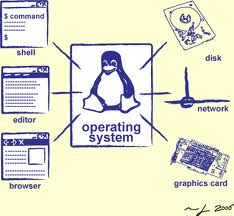
If you have taken the time to read my bio you will notice that I'm biased towards the belief that computer operating systems should be inexpensive or even better, free. Several years ago I stumbled upon Unix while working out in the field as a computer support specialist. I became fascinated by this different type of operating system controlling one of the servers at a client's place of business. Wanting to know more I decided to do some research as to what Unix was all about. It was during this time I was introduced to the world of free operating systems and free software.

I have spent a great deal of time researching all the information I could find on why someone would go to the trouble of creating an operating system that he would give away for free. It is through this research that I discovered a whole community of people dedicated to ensuring the Linux operating system would remain free as well as free software to go with it. These people remain, to this day, dedicated to improving Linux as well as creating software that meets or exceeds the needs of the those choosing to use the above.

Ubuntu is just one such version of Linux that is fast becoming the most user friendly operating systems. Ubuntu comes packaged with software most used by all of us. You will find applications such as Open Office, equivalent to the Windows version of Microsoft Office. You will find everything from games to Internet browsers, programming to sound and video and much much more. All of this free and supported. Have a problem with a certain software package? You will find the answers available only a few keystrokes away. Type your problem in a browser and you will find a forum or website with the answer. If the answer isn't there, just submit your request for help and someone will be eager to help you.

Since Ubuntu Linux is free and open source this means the program coding is also accessible. For those who are familiar with programming, this becomes a great advantage to changing the operating system or software as you see fit. Another advantage is that you can get involved by providing feedback as to your likes or dislikes. If you are a programmer you can tweak some of the software and submit it to be passed along to other like minded people wanting to see that Linux and the software packages remain free to use for everyone.

Article Source: http://goo.gl/QQFlo

Tuesday, July 26, 2011

Swap Your Operating System From Microsoft Windows to Free Linux

0 comments

The majority of computer users have Microsoft Windows operating system on their computers. It is true that Microsoft dominates the market... but have you considered other operating systems? This isn't a plug for any particular operating system but if you are considering purchasing a new computer because the old one has slowed to a crawl or you are fed up with virus or malware issues then think about swapping operating systems.

In fact it really isn't. Back in the day when Linux was young you were really super cool if you could figure out how to install the stinkin' thing. Now you can choose a variety of flavors of Linux and the installs are typically easy plug-n-play type installs. Linux has a tendency to be a much smaller install than Windows. I like the Ubuntu Linux... it is FREE and the install is typically trouble free.

If you are used to Windows, you can setup Linux and the "KDE" (K-Desktop) or "Gnome" interfaces which are fairly intuitive if you are used to Windows. As far as applications if you have been using Microsoft Office... install the free OpenOffice.org which is MS Office compatible. If you don't want to "lose" your Windows, you can either create a multi-boot system, allowing you to swap between Windows and Linux, or you can use a virtual machine host like VMWare and run Linux under Windows or vice-versa. If you are experimenting use the free VMWare server do a few installs tweak settings and get comfortable with swapping OS's.

Read more: http://goo.gl/E4okU